Products Feature
The Products feature turns any account under "Assets" into a personal inventory of valuable items — guitars, watches, cameras, electronics, collectibles. Each product remembers what you paid, what it's worth today, and every transaction that touched it.
Instead of seeing an account's balance as a single number, you see the actual items that make it up, how they're performing, and the net result once you resell them. It's a lightweight alternative to a spreadsheet — no quantities, no stock levels, just one record per thing you own.
Products are optional. Turn them on only for the accounts where tracking individual items matters — you don't have to use them everywhere.
Why spend time on this?
Most people treat "stuff I own" as invisible. That's fine for groceries and coffee, but once you're buying items that hold value — or you plan to resell — a plain expense category hides the picture. Products give you:
- A realistic net worth — the €2,000 camera in your drawer shows up in Insights instead of being hidden under "Electronics expense".
- Profit/loss visibility per item — see whether that watch appreciated or the gaming console depreciated before you consider selling.
- A personal catalogue with photos and URLs — useful for insurance, warranty lookups, or remembering where you bought something.
- Honest resale tracking — when you sell, the transaction links back to the original purchase so you see the real gain or loss, not just a lump-sum income.
- Cleaner statistics — accounts with products move out of the "Cash" group into "Investments", so your liquid-money graphs stop being skewed by the value of physical items.
Key terms
Product — A single tracked item (one guitar, one watch, one laptop). It has a name, optional emoji or photo, a link to where you bought it, a "used" flag, and optional market prices for new and used condition.
Product Account — An account under "Assets" with the "Support Products" flag turned on. Think of it as a category that holds products — e.g. a "Collectibles" account holds many individual collectibles.
Purchase link — When you record an expense on a product account and attach a product, Budget Buddy saves a purchase link between the transaction and the product. That's what builds your purchase history.
Sale link — When you sell a product, you create an income transaction on the product account with "Sell Product" turned on. That creates a sale link, and the product is marked as sold (and hidden from future sell dialogs unless partial).
Partial sale — A sale that doesn't fully close the product. Useful when a product represents a bundle — for example, selling 1 of 3 identical mics from a "Live sound kit" product. The product stays available for further sales until you record a non-partial one.
Enable products on an account
Products are opt-in per account. Any account under the "Assets" root can be flipped into a product container — this doesn't touch its existing balance or transactions, it just unlocks the extra UI.
Open the account
Go to Accounts, then either edit an existing asset account or tap the + button to create a new one. A dedicated account (e.g. "Collectibles", "Electronics", "Musical gear") tends to work better than mixing products into an everyday cash account.
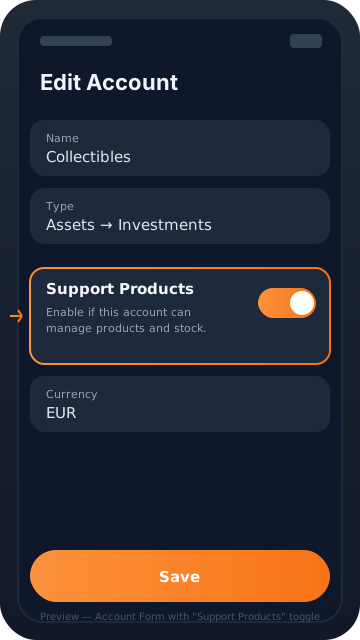
Toggle "Support Products"
Scroll to the "Support Products" row and turn it on. The hint reads: "Enable if this account can manage products and stock." The account must live under "Assets" for this to make sense.
Save
Tap Save. From now on, the Transaction Form will show an "Attach product" section for expenses on this account, and a "Sell Product" section for income transactions.
Once "Support Products" is on, the account moves from the Cash or Bank Accounts group into the Investments group in Insights. If this is the first product account you create, don't be surprised when a new "Investments" row appears on your net worth screen.
Add a product via a purchase
You don't create products from a blank form. Instead, every product is born out of a real purchase transaction — that's what guarantees the purchase history is accurate and the purchase date matches the transaction date.
Create an expense on the product account
Open the Transaction Form, pick the product account (e.g. "Collectibles"), and enter the amount you paid. Handle category, date, and memo as usual.
Enable "Attach product"
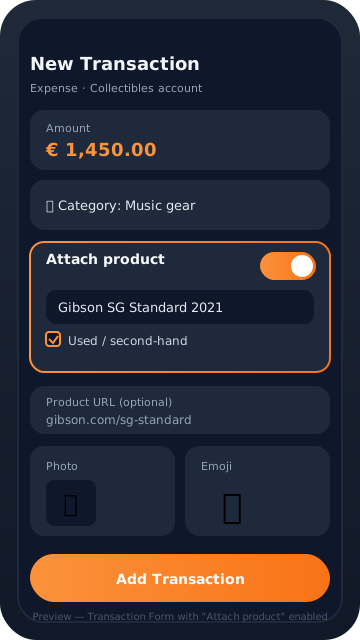
On a product account, the Transaction Form shows an "Attach product" toggle. Turn it on. This reveals the product fields.
Fill in the product details
Type the product name (required). Optionally add an emoji, a photo, a URL, and toggle "Used / second-hand" if applicable. These are the fields that will identify this item everywhere else in the app.
Save the transaction
Tap Add Transaction. Budget Buddy creates the product record, links the transaction to it as a purchase, and immediately shows it in the Products tab.
(Later) Fill in market prices
Open the product from the Products tab, tap Edit, and add current new and/or used market prices with the source URL. Budget Buddy remembers when you last checked so you can refresh periodically.
Market prices are optional, but filling them in unlocks two things: a realistic net worth (via current-new or current-used valuation) and a clearer profit/loss view on the product details page. A product URL makes it much easier to refresh these later.
Manage your catalog
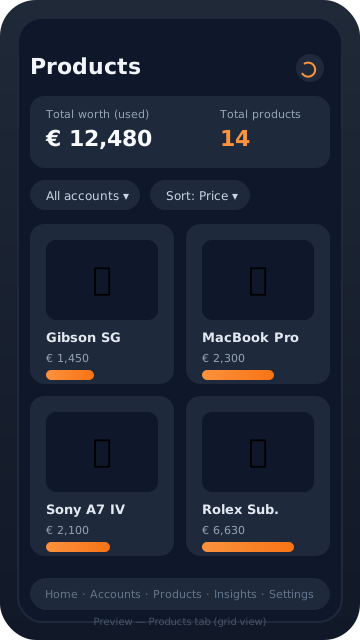
The Products tab is your catalog. It's accessible from the Home tab and shows every product you own, their totals, and quick filters.
Open the Products tab
From the Home tab, open "Products". You'll see a summary (total count, total worth at current valuation) and a filter row at the top.
Filter by account
Tap the "All accounts" chip to narrow the list to a single category (e.g. only Collectibles, only Electronics).
Sort by price or date
Switch between "Sort by price" (descending) and "Sort by purchase date" (newest first) depending on whether you're doing a value review or a recency review.
Switch view type
Toggle between grid (big tiles with photos and emojis) and table (compact rows, easier to scan many items).
Show in main currency
If you own products priced in different currencies, enable "Show in main currency" so totals are consistent and you can compare apples to apples.
Open a product's details
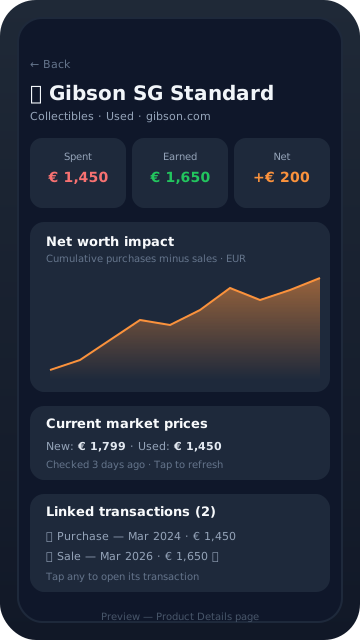
Tap any product to open its details page: total spent, total earned, net position, a cumulative timeline chart, the current market prices (new and used), and every linked transaction (purchases and sales).
Refresh market prices
Use "Refresh prices" to re-check market prices for products that have a source URL. Budget Buddy stamps each check so you know how stale the numbers are.
Sell a product back
When you resell a product — on Reverb, OLX, Vinted, Facebook Marketplace, to a friend, wherever — record it as an income transaction on the product account and flip the "Sell Product" toggle. The sale amount is whatever you actually received; Budget Buddy will compute the profit or loss against the original purchase automatically.
Create an income transaction on the product account
Open the Transaction Form, pick the product account, switch the type to income, and enter the amount you received.
Enable "Sell Product"
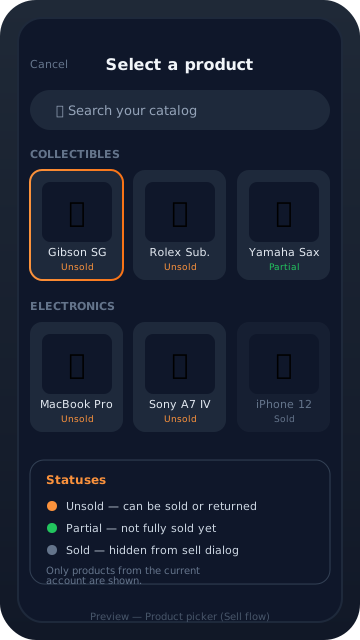
The Sell Product section appears on income transactions for product accounts. Turn it on, then open the product picker. Only unsold and partially-sold products from this account are listed — sold items are hidden automatically.
Choose partial or full sale
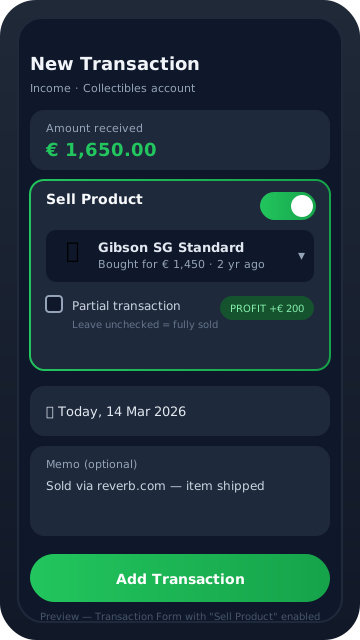
If this single transaction closes the product, leave the Partial checkbox off — the product becomes "Sold" and disappears from future sell pickers. If the product represents multiple pieces and you're only selling some of them, check Partial — the product stays available for further sales.
Save the transaction
Tap Add Transaction. Budget Buddy creates a sale link to the product. The product's details page now shows both the original purchase and this sale, the profit/loss is computed for you, and the product's cumulative net worth chart updates.
Use "Partial transaction" only when you're genuinely splitting a product across multiple sales — for instance, a bundle of identical items, or a multi-payment installment sale. For a normal one-shot sale, leave it unchecked so the product is marked fully sold and hidden from future sell dialogs.
Effect on your statistics
Turning on products doesn't just add a catalog — it changes how Budget Buddy builds your reports. Here's what to expect:
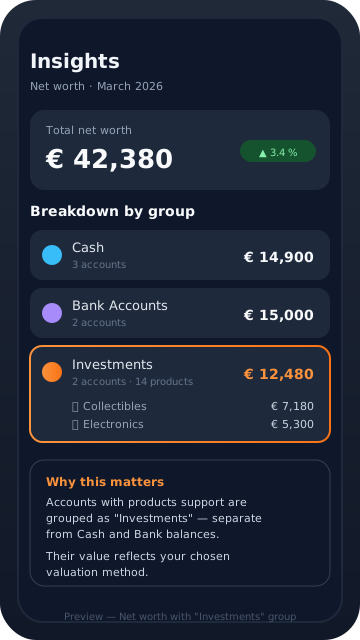
- Net worth grouping: accounts with products support are pulled out of "Cash" or "Bank Accounts" and shown under "Investments", so your liquid money is no longer mixed with physical assets.
- Net worth amount: each unsold product contributes based on your chosen valuation method — purchase price, current new price, or current used price. Sold products stop contributing (but their transactions remain).
- Per-product timeline: every product has its own chart showing cumulative purchases minus sales over time. Easy to spot whether an item has already paid for itself.
- Profit/loss on sale: when you record a sale, the income still counts toward your cash flow — but the product details page reports the difference between purchase and sale separately, so depreciation/appreciation is visible.
- Watchlist & data quality panels: the Products tab surfaces items with missing prices or stale refreshes, so your valuation doesn't silently drift.
Valuation method
Unsold products need a number to show in your net worth — but that number depends on what you're measuring. Budget Buddy lets you pick the basis once, in Settings → Products → Valuation, and applies it across every product account.
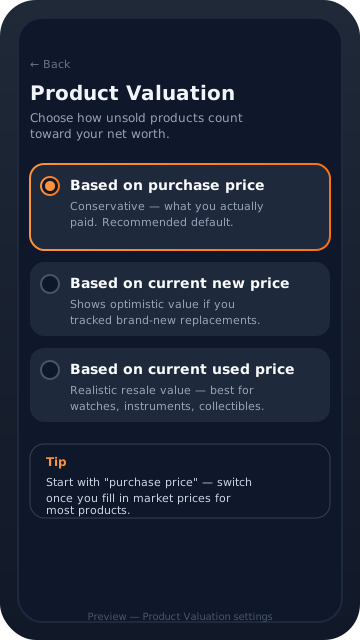
Based on purchase price — The safest, most conservative option. Uses what you actually paid. Ignores market fluctuations — perfect if you mostly care about tracking what you own, not what it's worth today. This is the recommended default.
Based on current new price — Uses the product's current new-condition market price. Most optimistic — gives you a replacement-cost view ("what would it cost to re-buy everything new today"). Useful for insurance estimates.
Based on current used price — Uses the product's current used-condition market price. Most realistic for resale scenarios — answers "if I sold everything tomorrow, what would I get?" Great for collectibles, watches, instruments.
Start with "purchase price" — it always works, even before you fill in market data. Switch to a market-based mode once most of your products have new or used prices filled in, otherwise Budget Buddy will have to fall back to purchase price anyway.
Best practices
A few habits that keep the Products feature useful instead of another to-do list:
- One account per category. Keep products grouped — Collectibles, Electronics, Tools, Musical gear. Mixing everything into one account makes filters useless.
- Only track items that matter. Don't turn the kettle into a product. A good rule of thumb: if you'd consider reselling it, track it. Otherwise let it live as a normal expense.
- Fill in the URL when you buy. It's zero extra effort while you're on the purchase page, and it makes price refreshes ten times faster later.
- Use an emoji before a photo. An emoji renders instantly in every list; photos are great for details but take screen real estate. Do both only for your higher-value items.
- Mark "Used" honestly. Bought second-hand? Toggle "Used". This affects how the used-market-price valuation behaves and keeps your data clean.
- Refresh prices monthly. Open the Products tab, hit "Refresh all prices", scroll the list. It's a 30-second habit that keeps Insights accurate.
- Record sales the day they happen. Waiting makes dates fuzzy and profit/loss calculations less trustworthy.
- Use "Partial" only when you mean it. A partial sale keeps the product active forever — easy to accidentally leave half-sold items cluttering your catalog.
The Products feature isn't designed for multi-item inventory with quantities and stock levels. Each product is one item. If you legitimately need quantity tracking (e.g., you're running a small shop), create one product per physical unit and use Partial sales to track bulk offloads.
Frequently asked questions
Can I track quantities, like "5 of this item"?
Not directly — each product is one record. For bundles or small batches, use the Partial sale feature to offload pieces over time. For real inventory with units, create one product per item.
What happens to a product when I delete the purchase transaction?
The link is removed, but the product record stays. If you want the product gone too, delete it from the product details page.
Do sold products still show up somewhere?
Yes — they're hidden from the "Sell Product" picker but remain in the Products tab (you can filter them out) and in their account's transaction history. The cumulative chart on the details page keeps showing them.
Can two accounts share the same product?
No. Each product belongs to exactly one account. If you move a product between categories, edit it and change its account — the transactions stay linked.
Does this sync across devices?
Yes. Products follow the same offline-first sync as your accounts and transactions — changes push when you're online and pull on the next app resume.