Monobank Export Guide
🇺🇦 Ukraine
This guide explains how to export your bank statement from Monobank in CSV format for import into Budget Buddy.
Export Steps
Open the App
Launch the Monobank mobile application on your device.
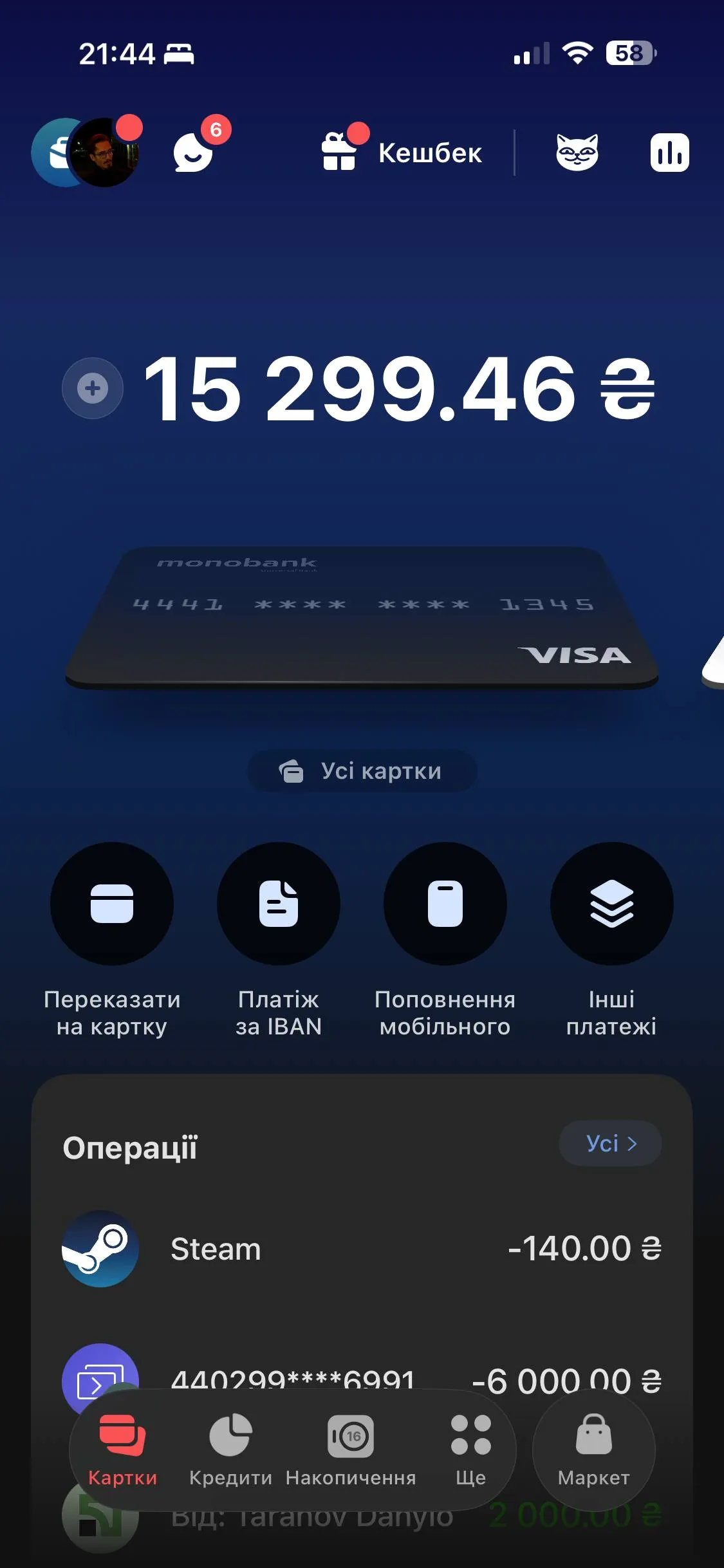
Select the Card
Tap on the card whose statement you want to reconcile with Budget Buddy.
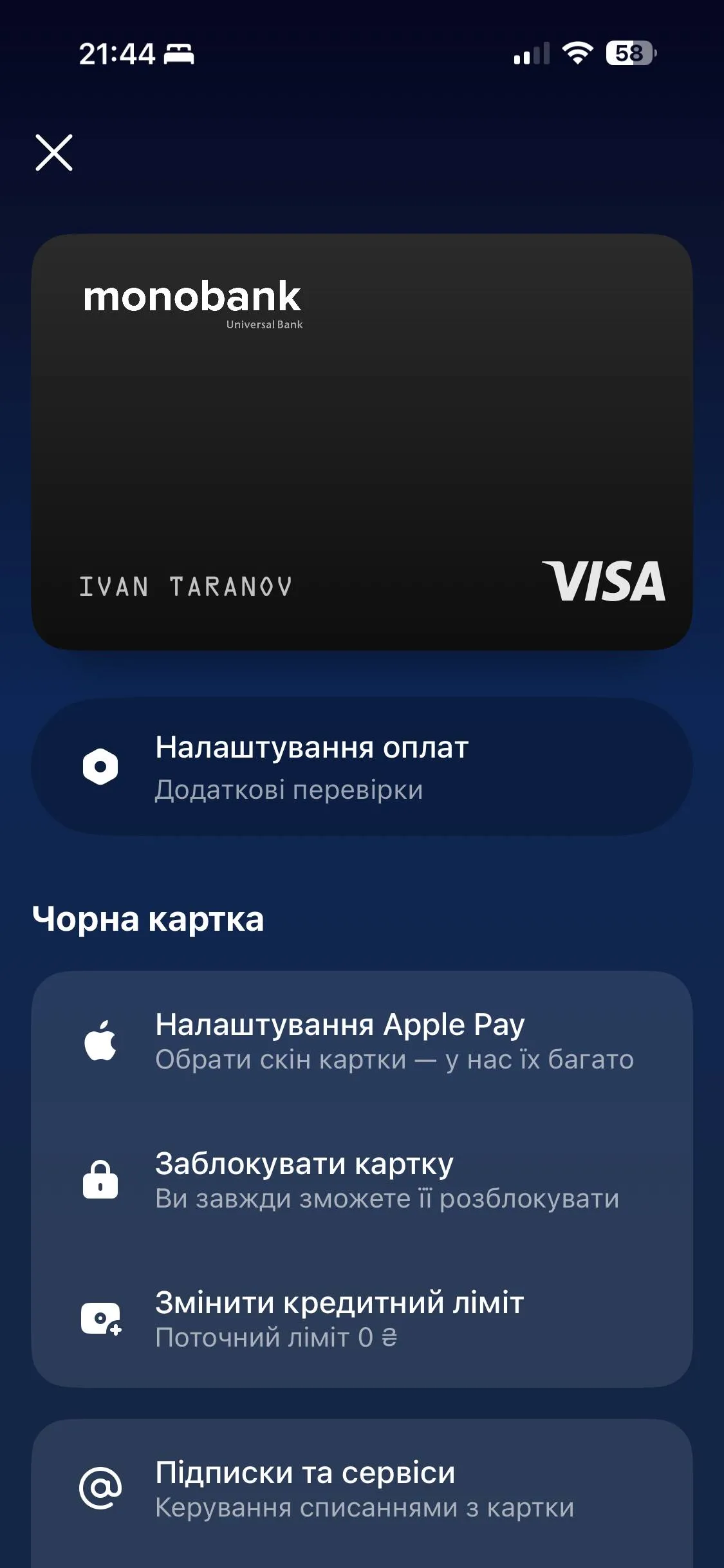
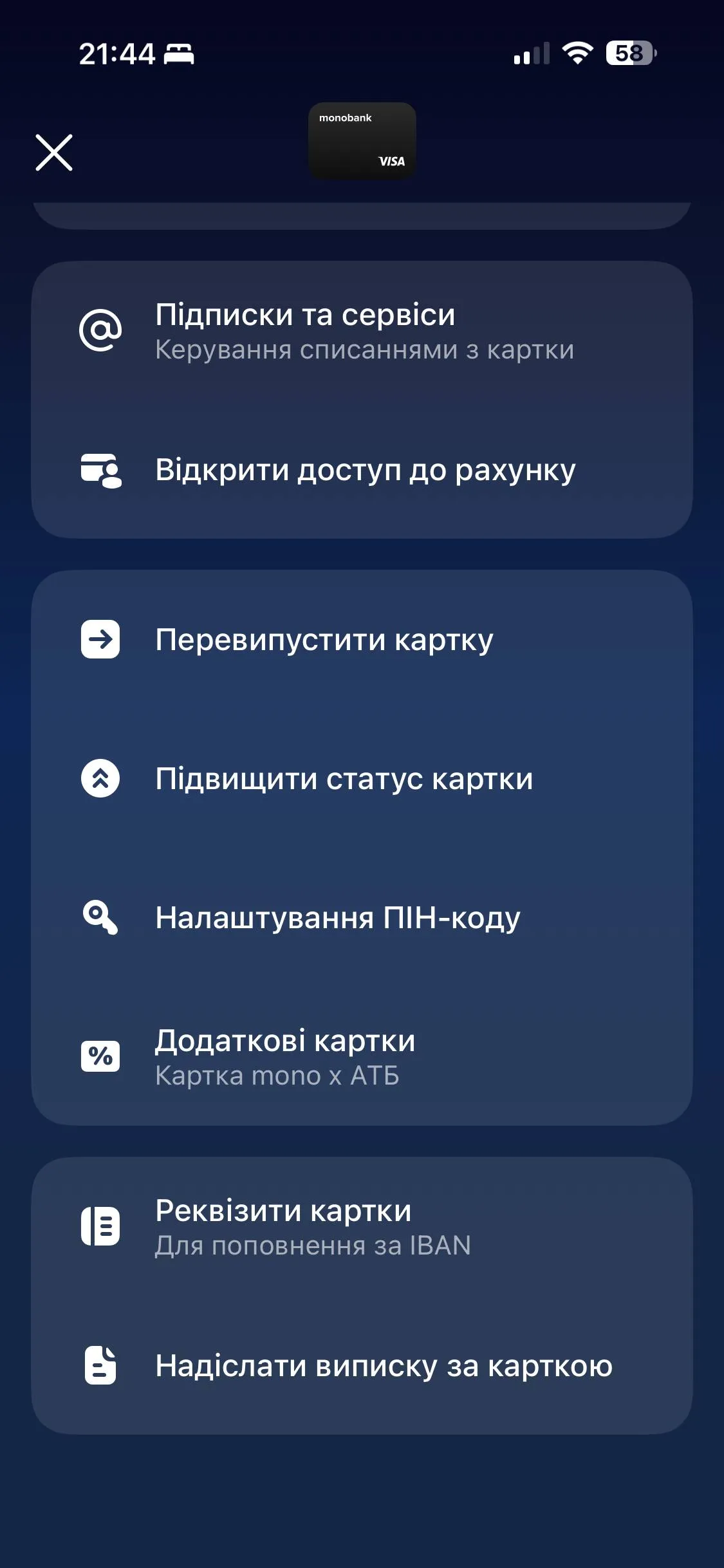
Send Card Statement
Scroll down and tap "Send card statement".
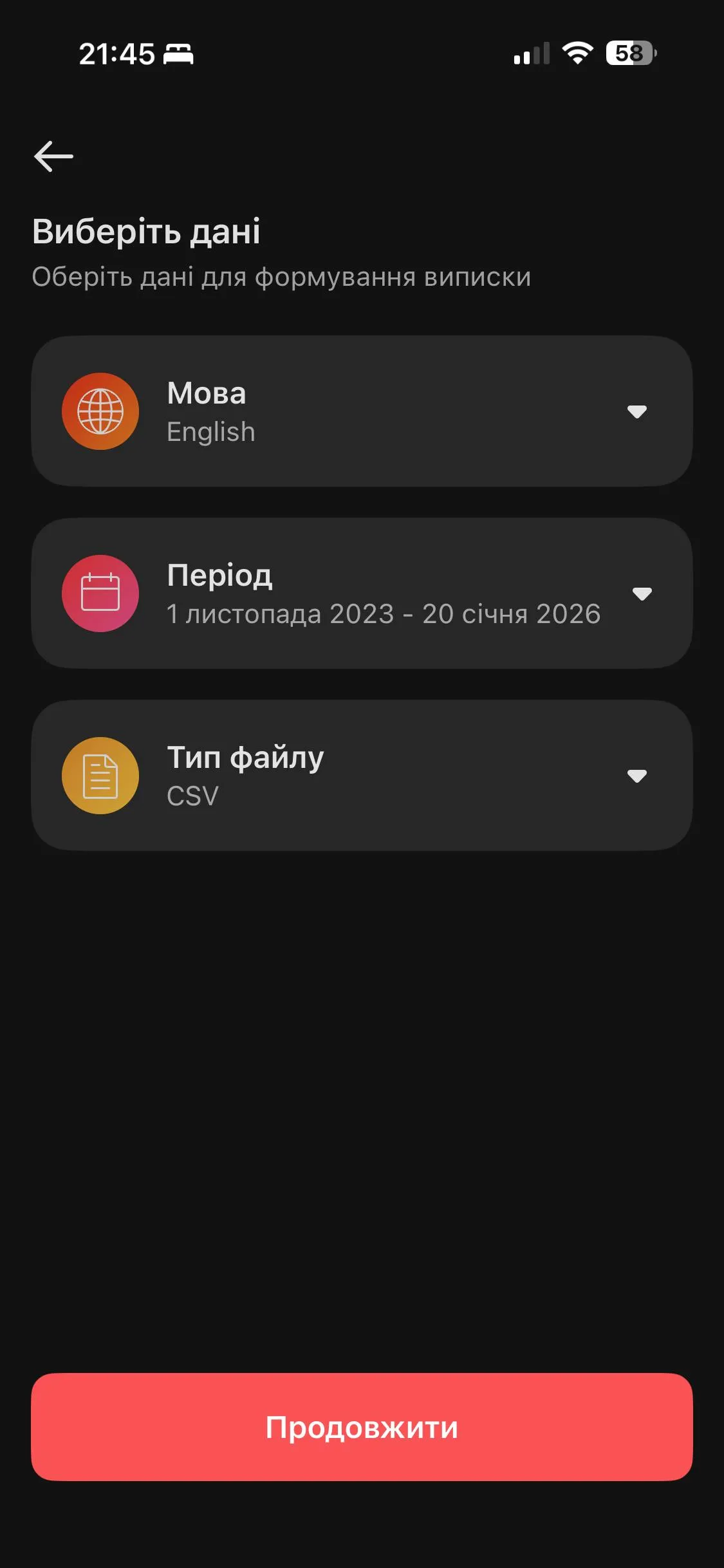
Configure Export Settings
Select language "English", choose your desired date range, and set file type to "CSV". Tap "Continue".
Send the Statement
Tap "Send" to generate the export file.
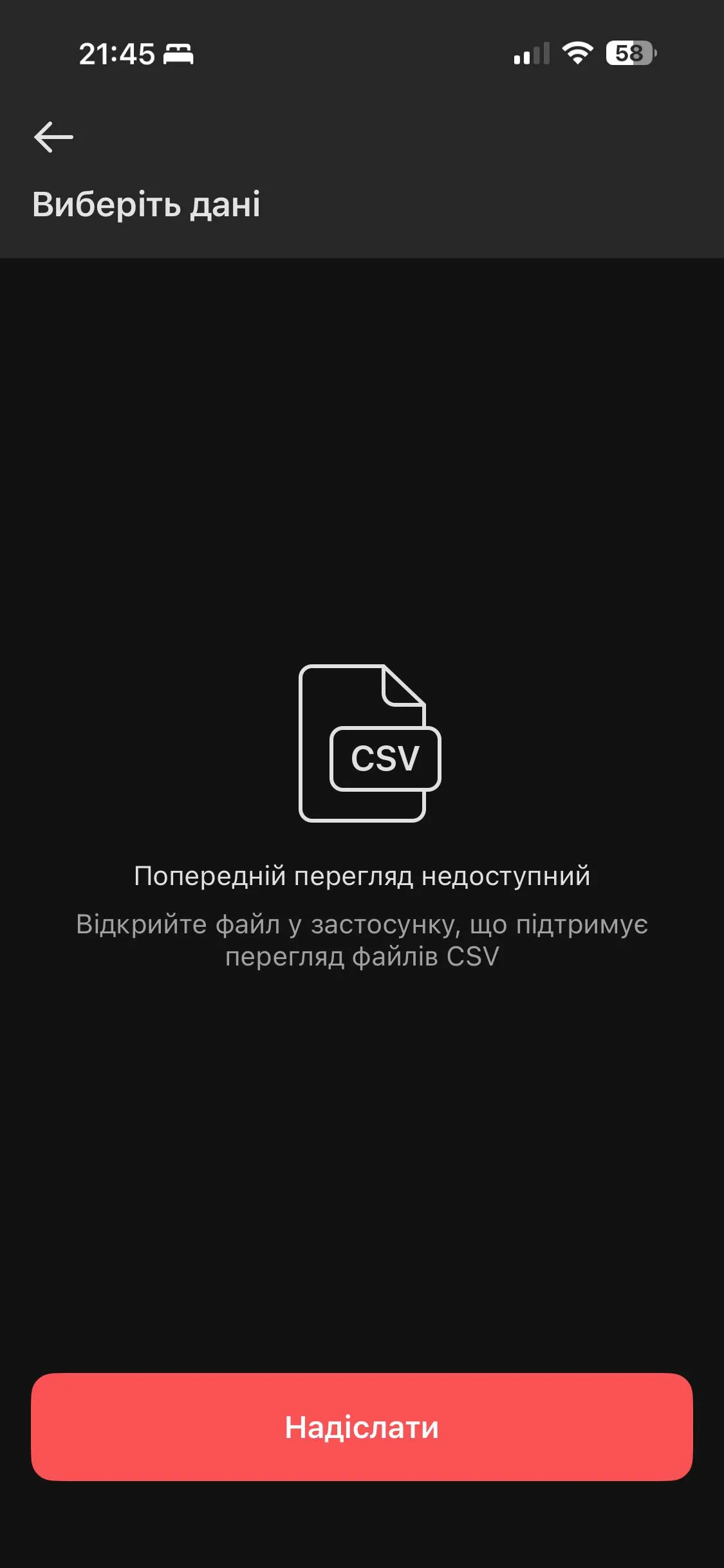
Save the File
Save the generated CSV file to your phone for later opening in Budget Buddy.

Important Notes
As of February 1, 2026, Monobank Business does not support CSV bank statement export — only PDF format is available. Therefore, automatic transaction matching in Budget Buddy works only for personal Monobank accounts, not business accounts. If Monobank adds CSV export for business accounts in the future, Budget Buddy will support it as well.