Import Bank Statement
Import Bank Statement feature lets you import the exported CSV from your Bank, and match with the transactions already recorded in Budget Buddy. This way, you get a result: Unmatched Transactions with quick actions to add/delete with the prefilled data parsed from your Bank Statement.
It's recommended to import all of your Bank Statements once a week/month to fill in the missing transactions, and fix the wrongly added.
Feature Terminology
Unmatched Bank Transaction - recognized transaction in the Bank Statement but is missing in Budget Buddy. It may appear if you paid for something with this bank account, but forgot to record this transaction in Budget Buddy. It's the most common case.
Unmatched App Transaction - recognized transaction in Budget Buddy, but is missing in Bank Statement. It may appear if you recorded the transaction for the wrong Account, made a typo in the Amount of the transaction, specified the wrong Date or just recorded the same transaction twice. Usually doesn't require deletion, but understanding how it could appear and fixed with just changing Account/Date/Amount in the most of the cases.
Configure Bank Account
Edit the Account in Budget Buddy
Both supported: during creation of the new account, or while editing the existing one. The account should be under the "Assets" root account.
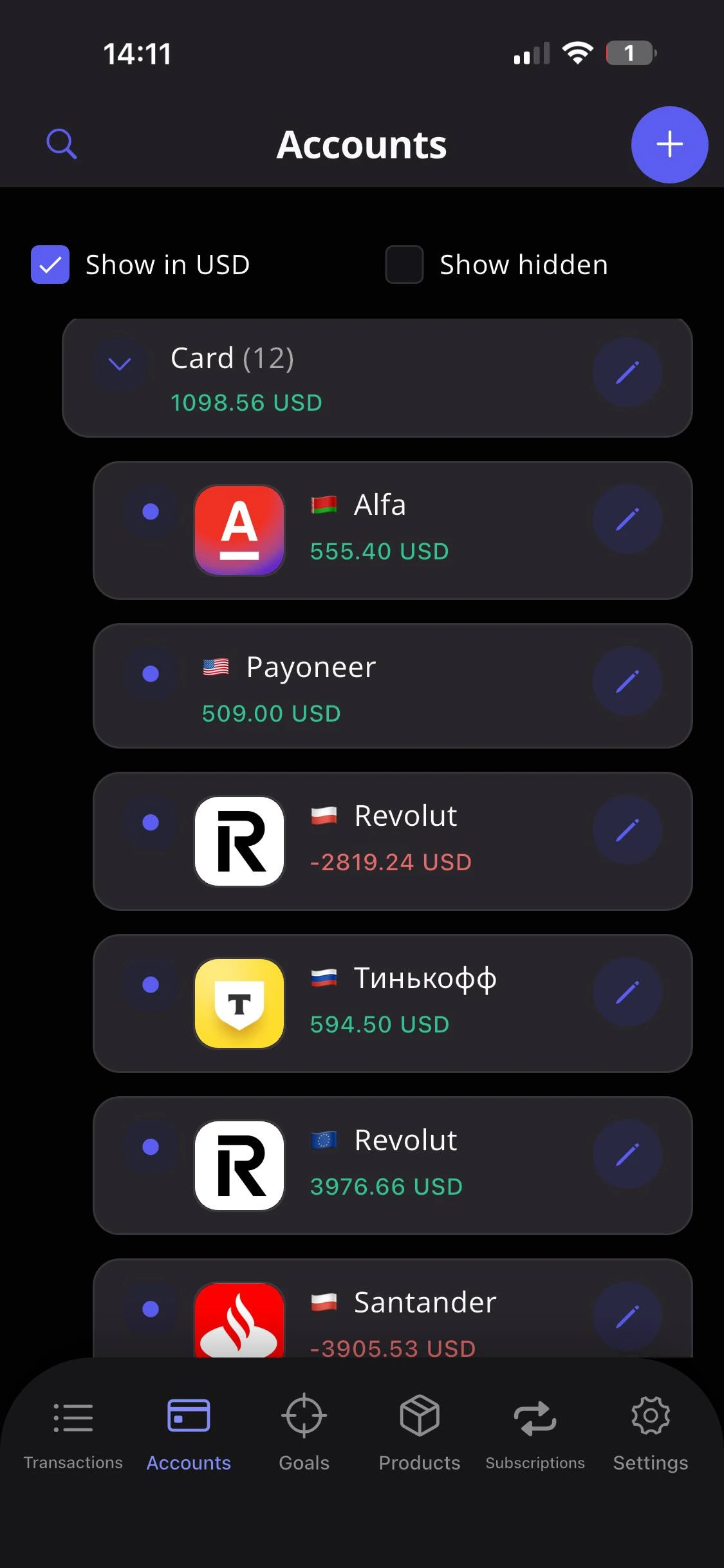
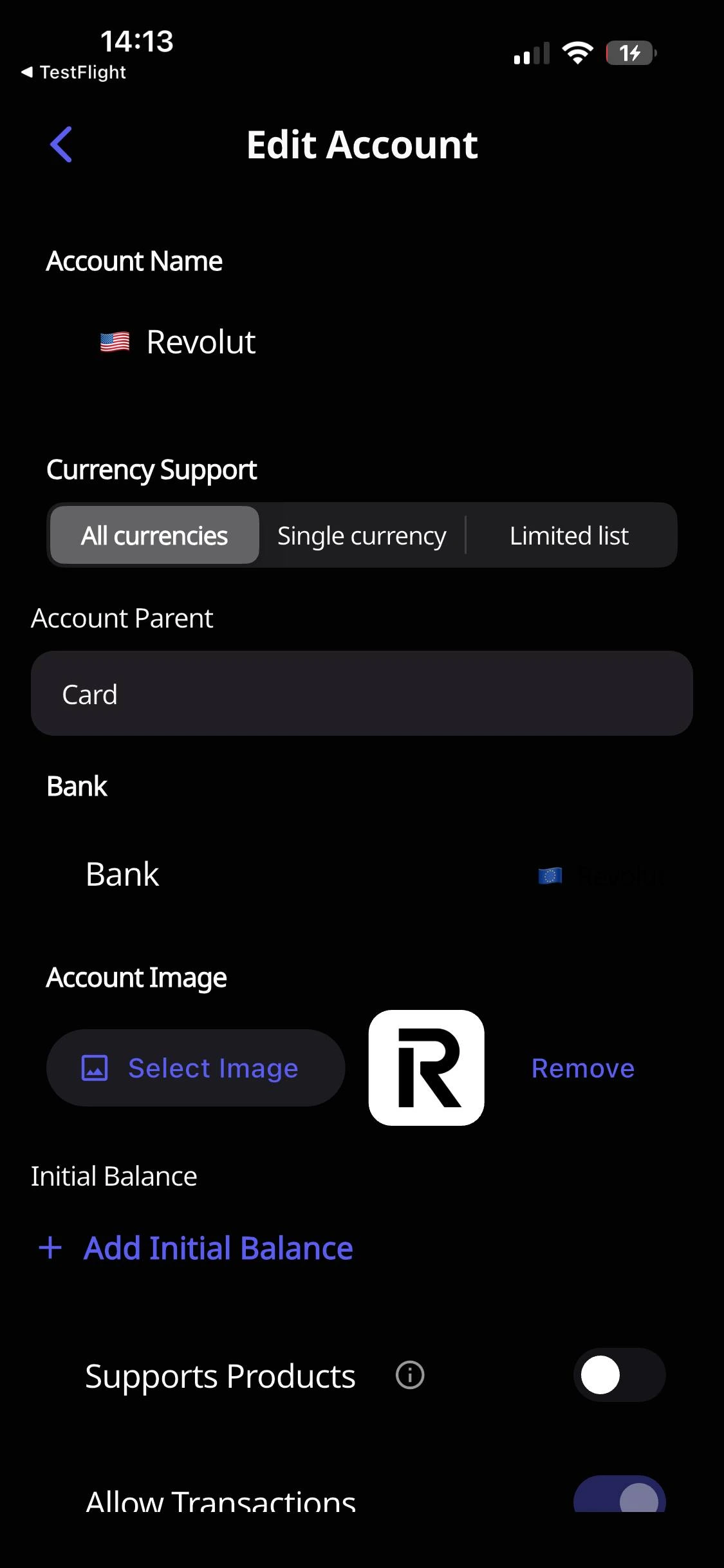
Select "Bank"
You can see "Bank: No bank selected" when editing your Account. Just click it and select the supported bank, paying attention to the country's bank. The same bank in different countries may have different bank statement CSV structure.
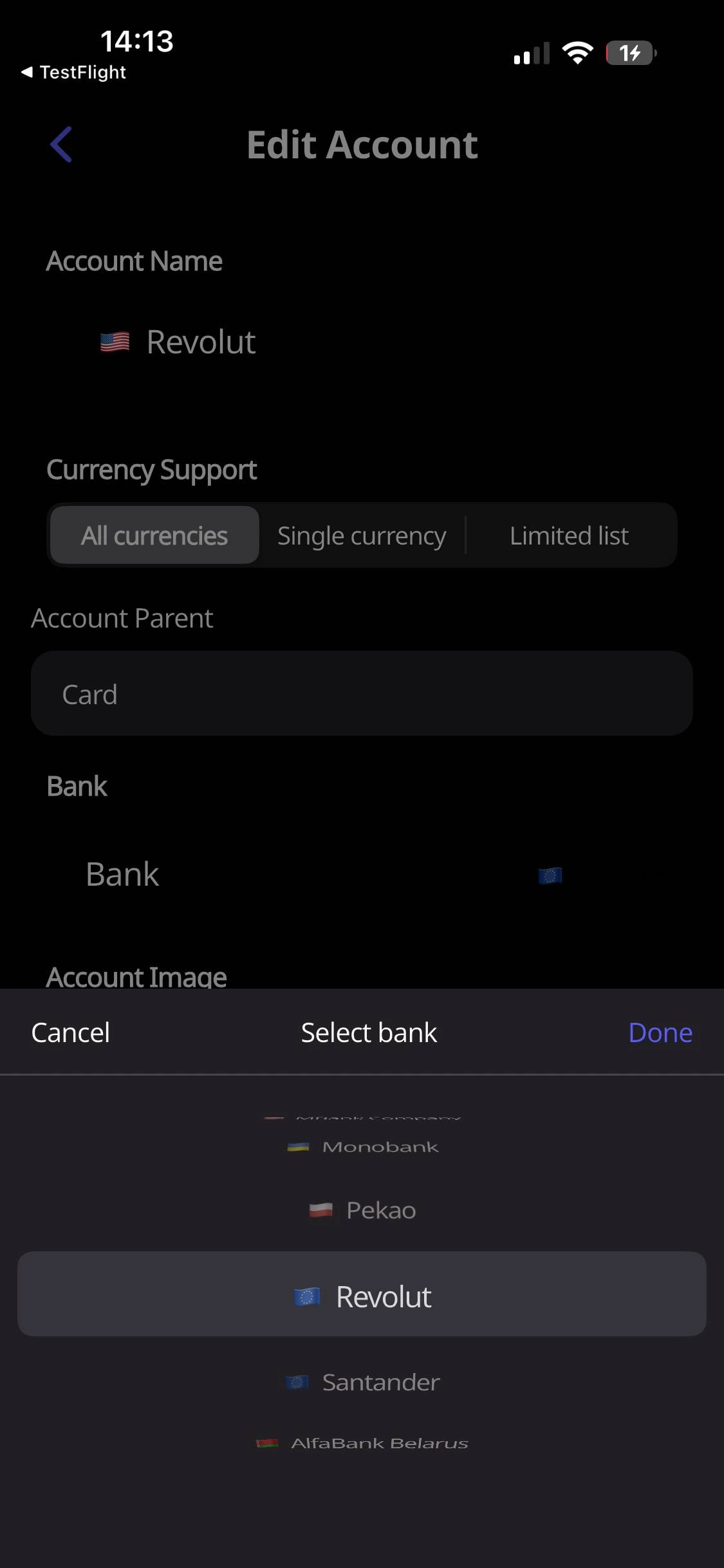
Click "Save"
Once the Bank is selected, it would be associated with your Budget Buddy account for simplifying all the future statements imports.
Bank Import Workflow
Export CSV from your bank
They usually provide this feature in the Bank mobile app. Some of the less-advanced banks allow to export the CSV statement only on their website. See the bank-specific guides below for detailed instructions.
Open "Bank Statements" in Budget Buddy
Go to "Settings" -> "Bank Statements" menu. This is a place to manage your Bank Statements import.
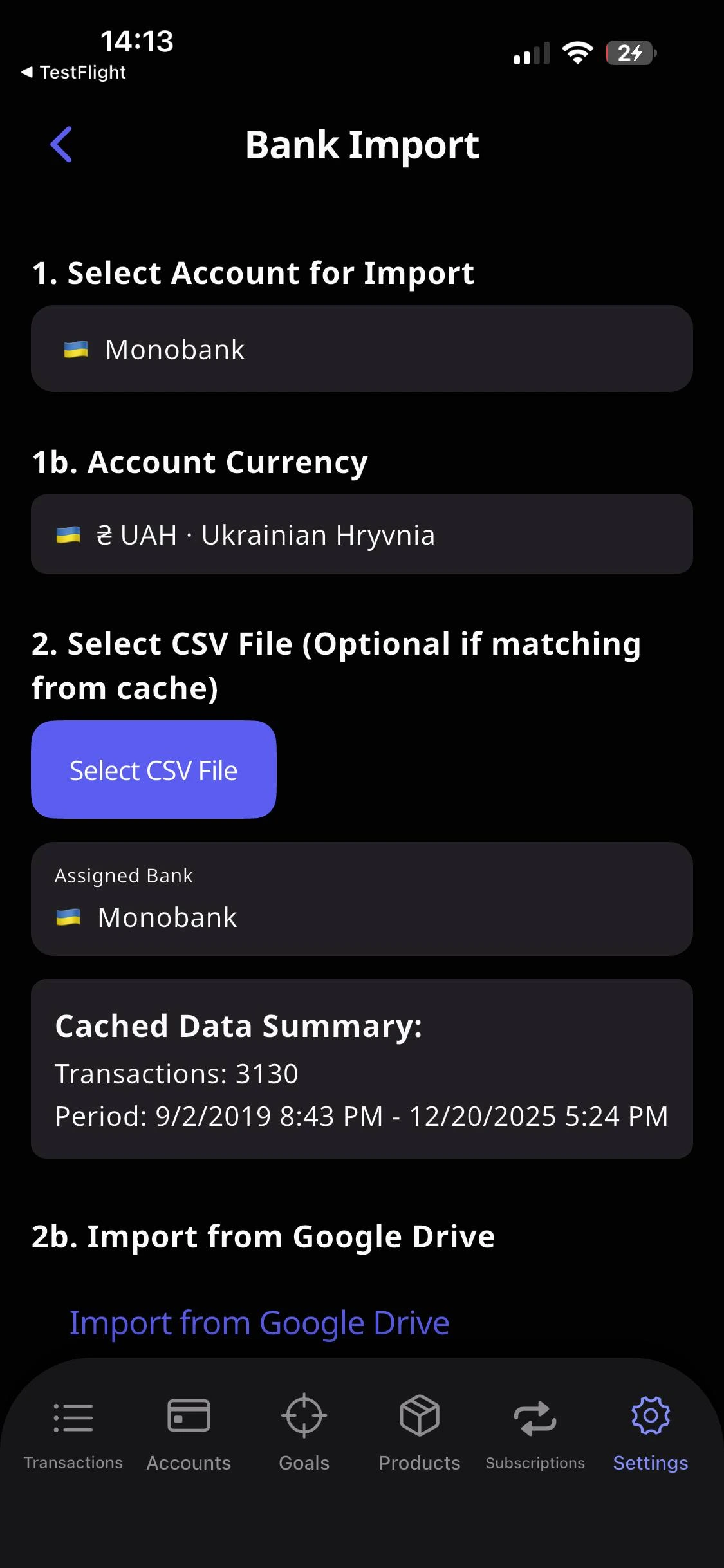
Select Account for import
On the very top is Account Picker that allows you to pick only accounts that have the "Bank" assigned from the previous step.
Verify the Bank
The "Bank" associated with the account would be shown.
Verify the Currency
If the Account is single-currency, it would be selected automatically and you won't be able to change. If the Account is multi-currency - you'll be able to pick the currency among supported. Ensure your CSV bank statement is of the same currency as the one you selected.
Click "Select CSV"
The native File Picker would be opened and you have to select the Bank Statement CSV from your device or cloud storage e.g. iCloud / GDrive / etc.
(Advanced) Specify the extra parameters
In case you want to match only the specific dates, or want to perform the Time Matching, you may play with the settings below.
Click "Import & Match Transactions"
In a couple of milliseconds you'll see the result. All the Unmatched Transactions would be shown with the tag attached that it's either Unmatched Bank Transaction or Unmatched App Transaction.
Fill the Unmatched Bank Transaction
Just click it, the Transaction Form would be opened with the prefilled data. You may optionally delete the parsed "Description" and "Memo" to not clutter your app if those statements data makes no sense for you. And click "Add Transaction"
Fill the Unmatched App Transaction
If you have some transactions recorded to your app, but not shown in the bank statement, either remember what it's about (maybe just wrong account/date/amount/currency specified) or just delete it. You won't mess with this bank account anyway, because Bank Statement is the source of truth.

Cached Statements
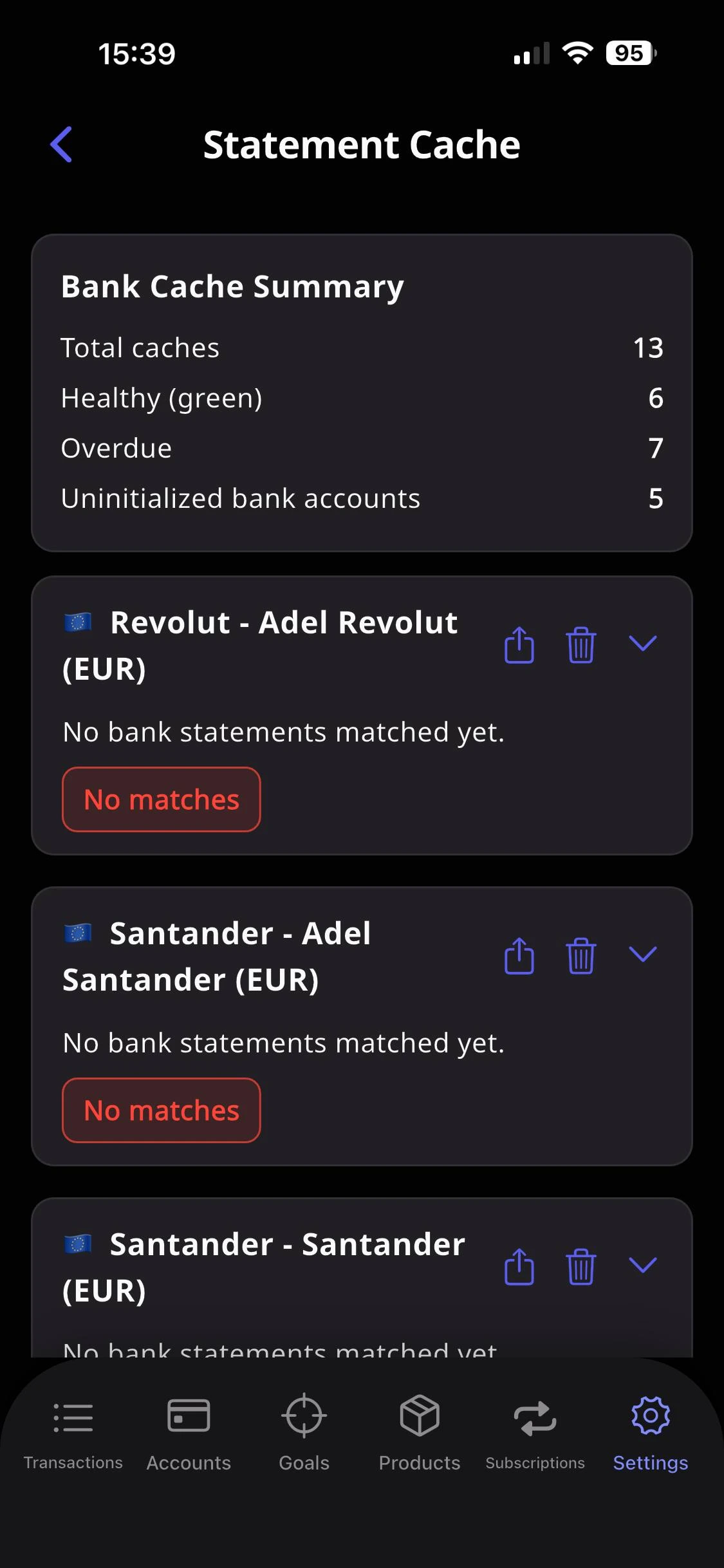
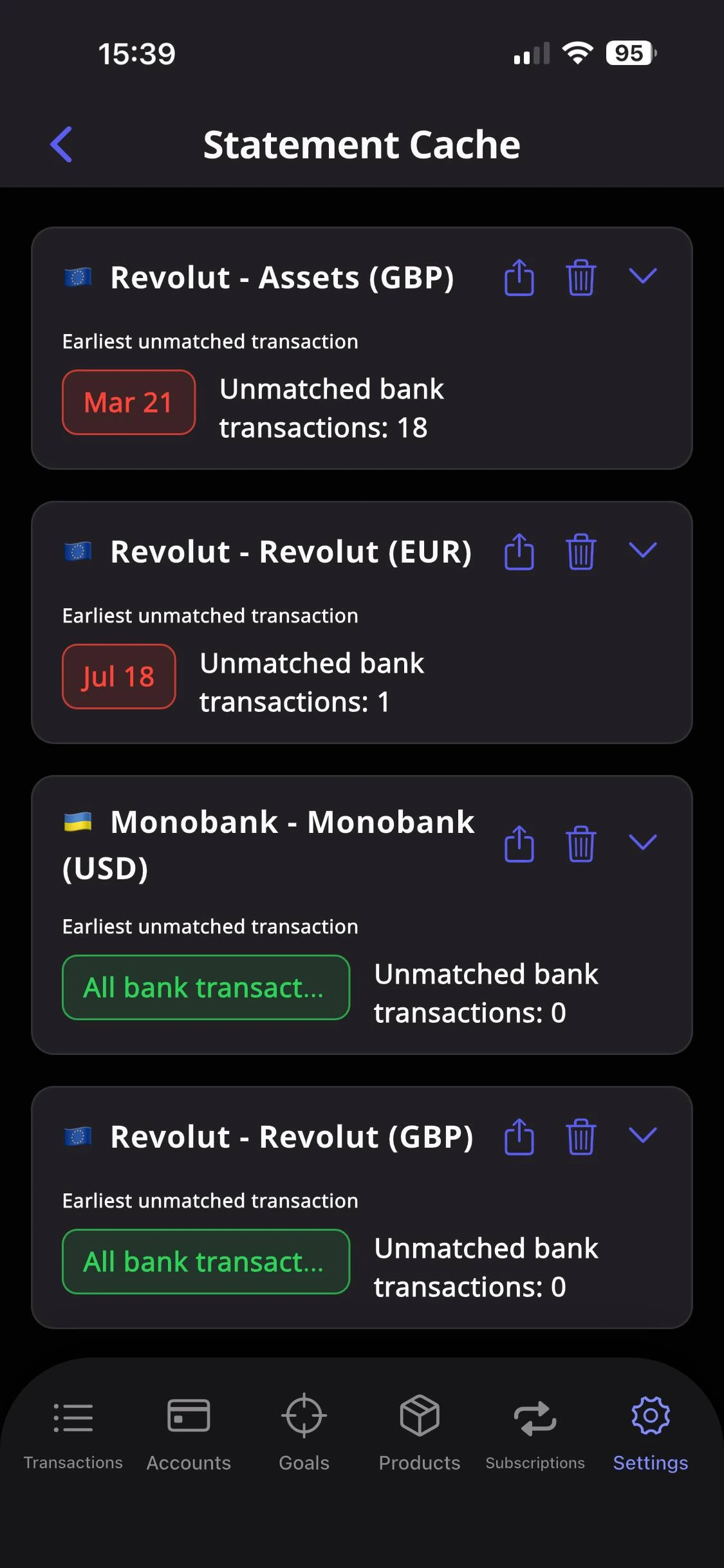
All the statements fed to Budget Buddy are cached, so you don't need to export "All time" statements every time. It's fine just to export the statement for the period since the last time. Also, you can feed the overlapping statements, and it's also fine: Budget Buddy won't create duplicated Unmatched Bank Transactions.
You may find the details about the Cached Bank Statements under Settings -> Bank Statements Cache.
Advanced Tips
Just a couple of extra points for the ones who want to go deeper
You may enable "Time Matching" and fix all the "Time" recorded in the Budget Buddy app to be exactly the same as in Bank statements. It's useful for keeping the data consistent and ordered exactly as it happened historically, but will not work for the Bank Statements of the banks which don't include the Time of the transaction to their bank statements (like Pekao bank and other).
Supported Banks
Select your bank below to see detailed step-by-step instructions on how to export your CSV statement. If you can't find your bank, just contact the developer and ask to add, it's easy and fast.
Monobank
Export guide for Monobank mobile app.
T-Bank
Export guide for T-Bank (formerly Tinkoff).
Alfa-Bank Belarus
Export guide for Alfa-Bank Belarus.
Revolut
Export guide for Revolut app.
Santander
Export guide for Santander Poland.
Pekao
Export guide for Bank Pekao.
mBank
Export guide for mBank personal accounts.
mBank Company
Export guide for mBank business accounts.